How HireFlow-AI works
Watch the video, with a voice and captions, to see how to sign up, check your resume, practise a live interview and take a viva. Teachers can follow the step by step guide below to set up an assignment and review the results.
About 4 minutes, with a voice and captions. The names in the video are demo names.
Set it up in three steps
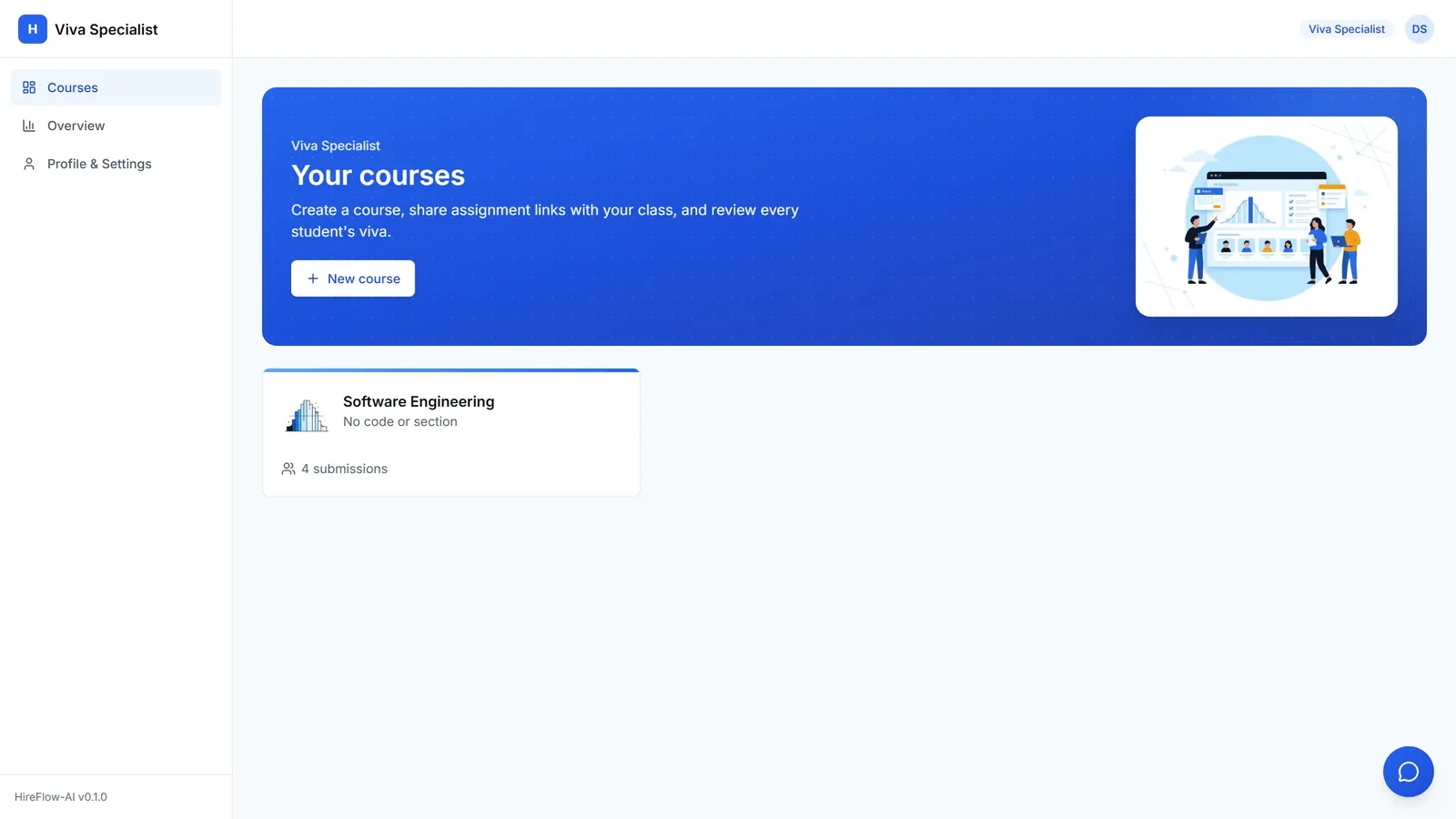
Create a subject
Sign in as a teacher and create a subject for your class. It is free while we are launching.
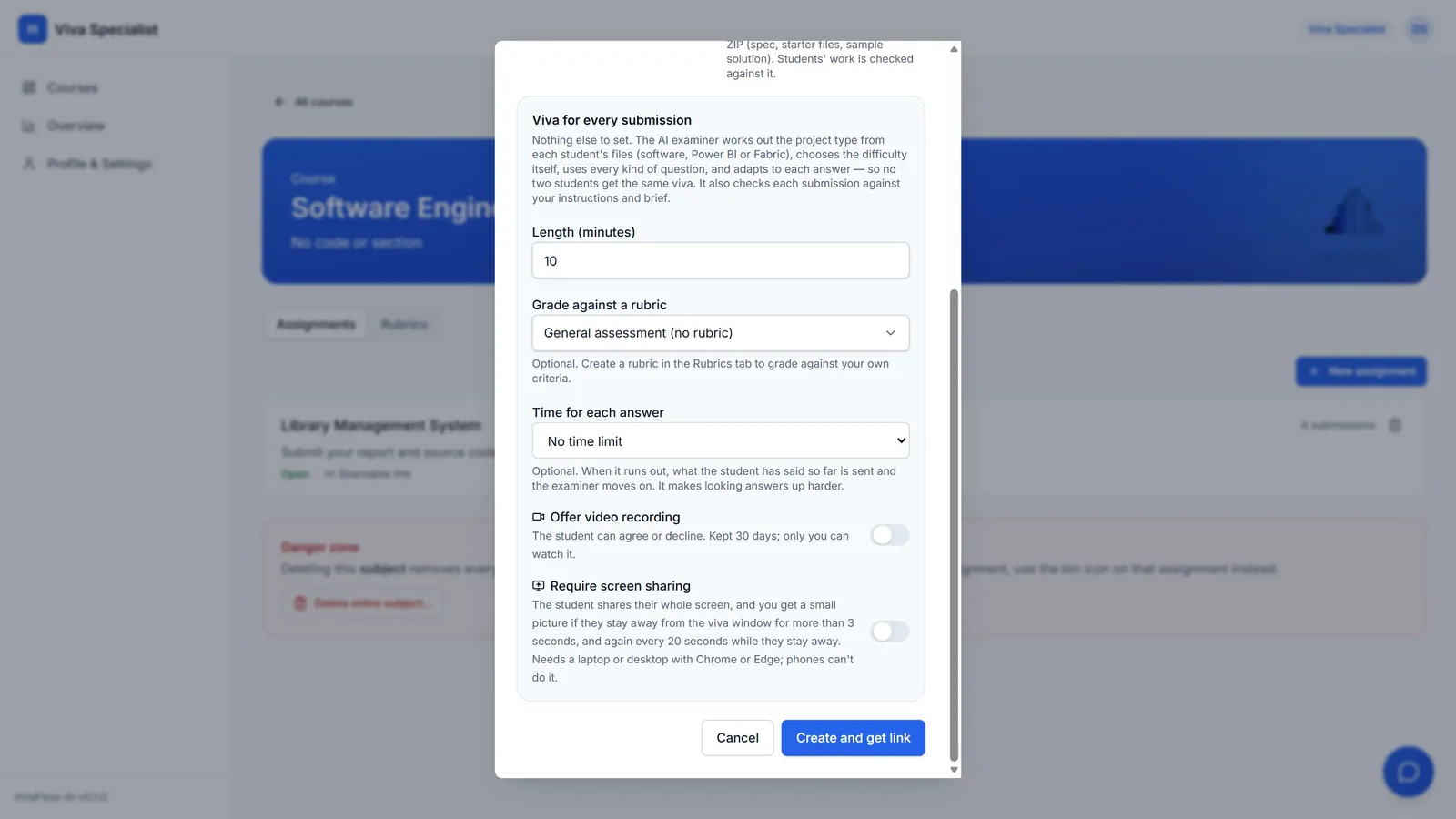
Create an assignment
Add a title and instructions. Choose the time for each answer, and switch on Require screen sharing if you want it.
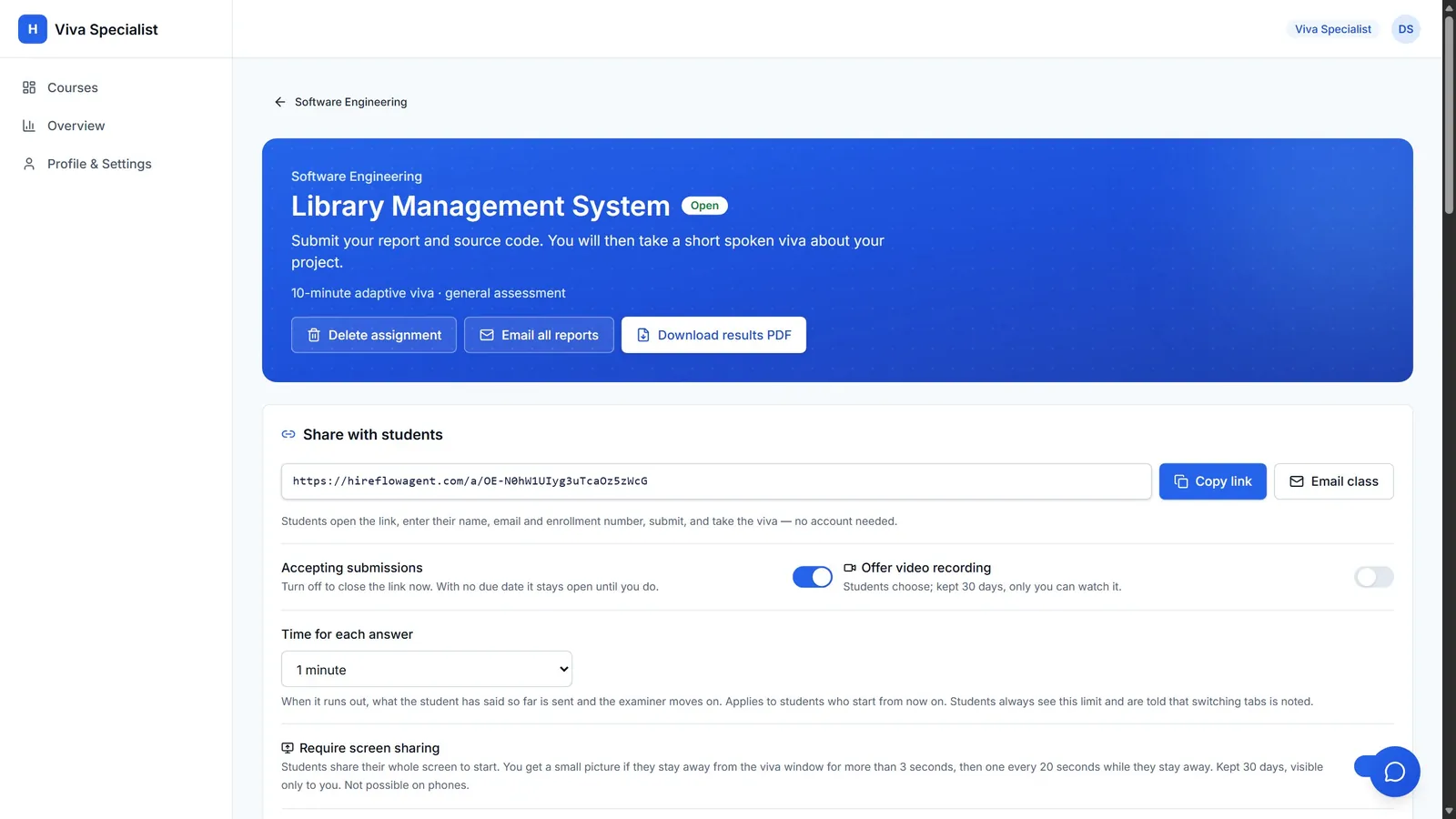
Share one link
Copy the link or email it to your class. Students need no account, and you can change these settings later.
The student takes the viva
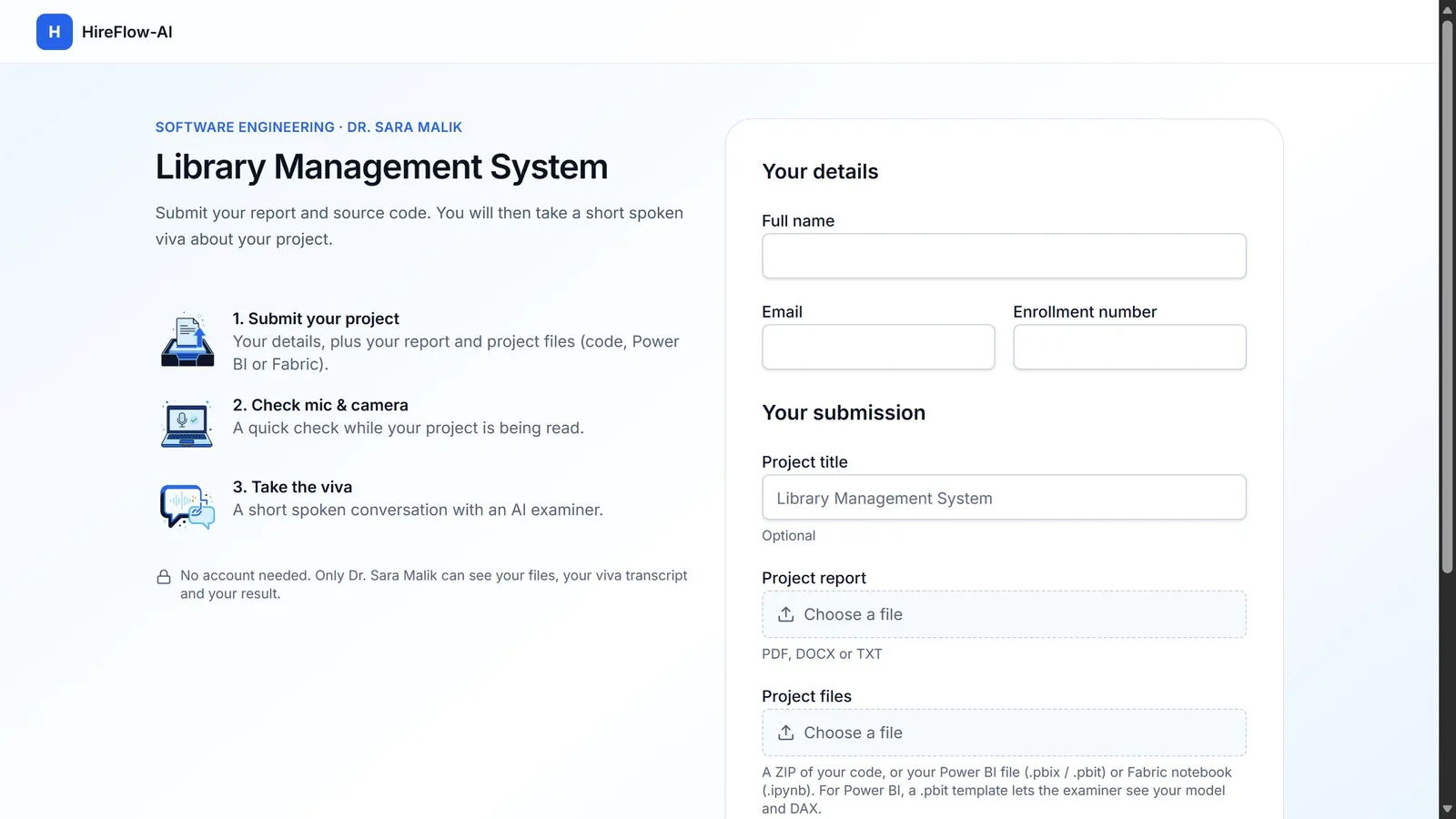
The student opens the link
They enter their name, email and enrollment number, then upload their report and project files.
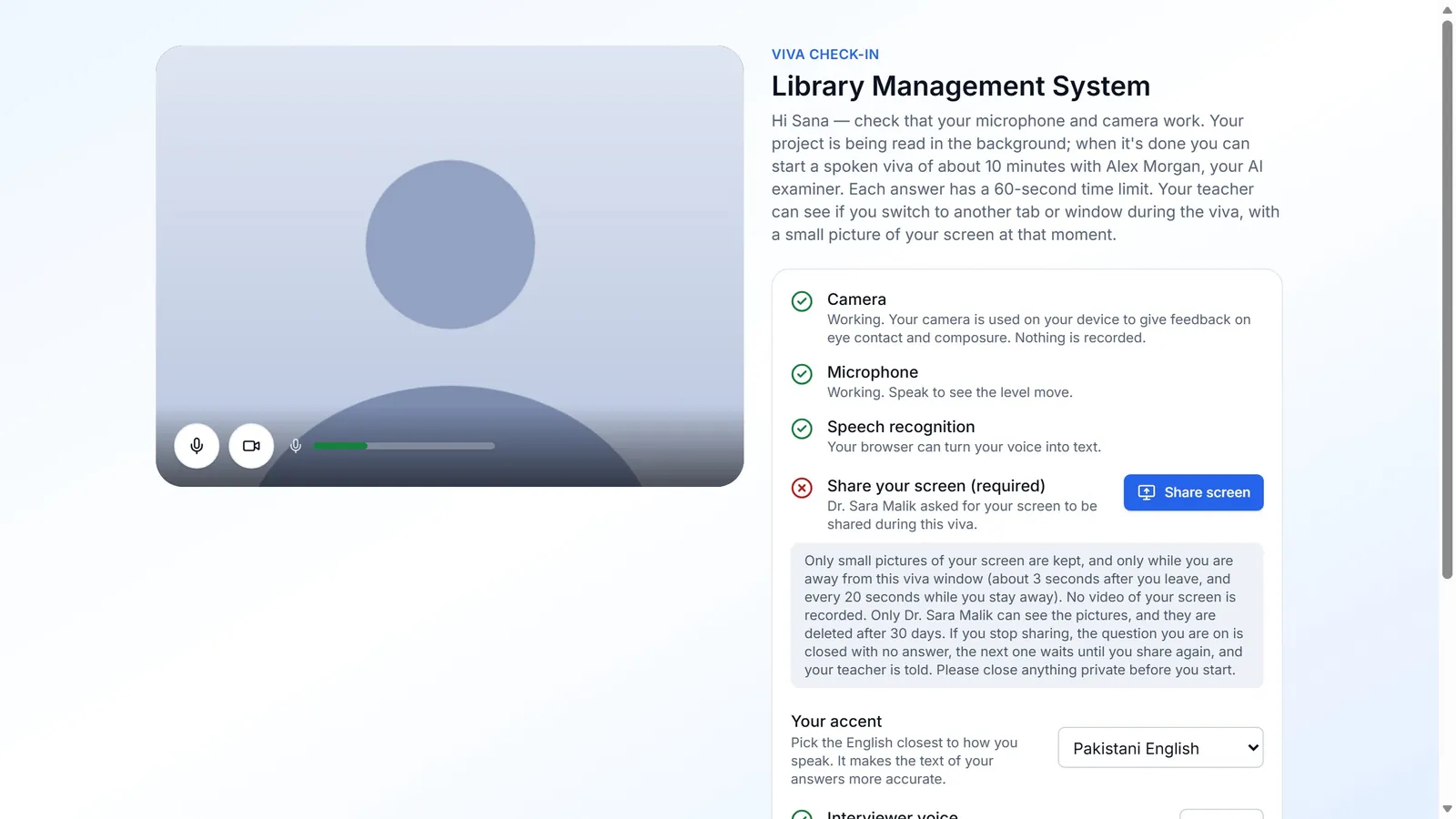
Check in before the viva
The student checks the microphone and camera while the project is read, and picks the accent closest to their own.
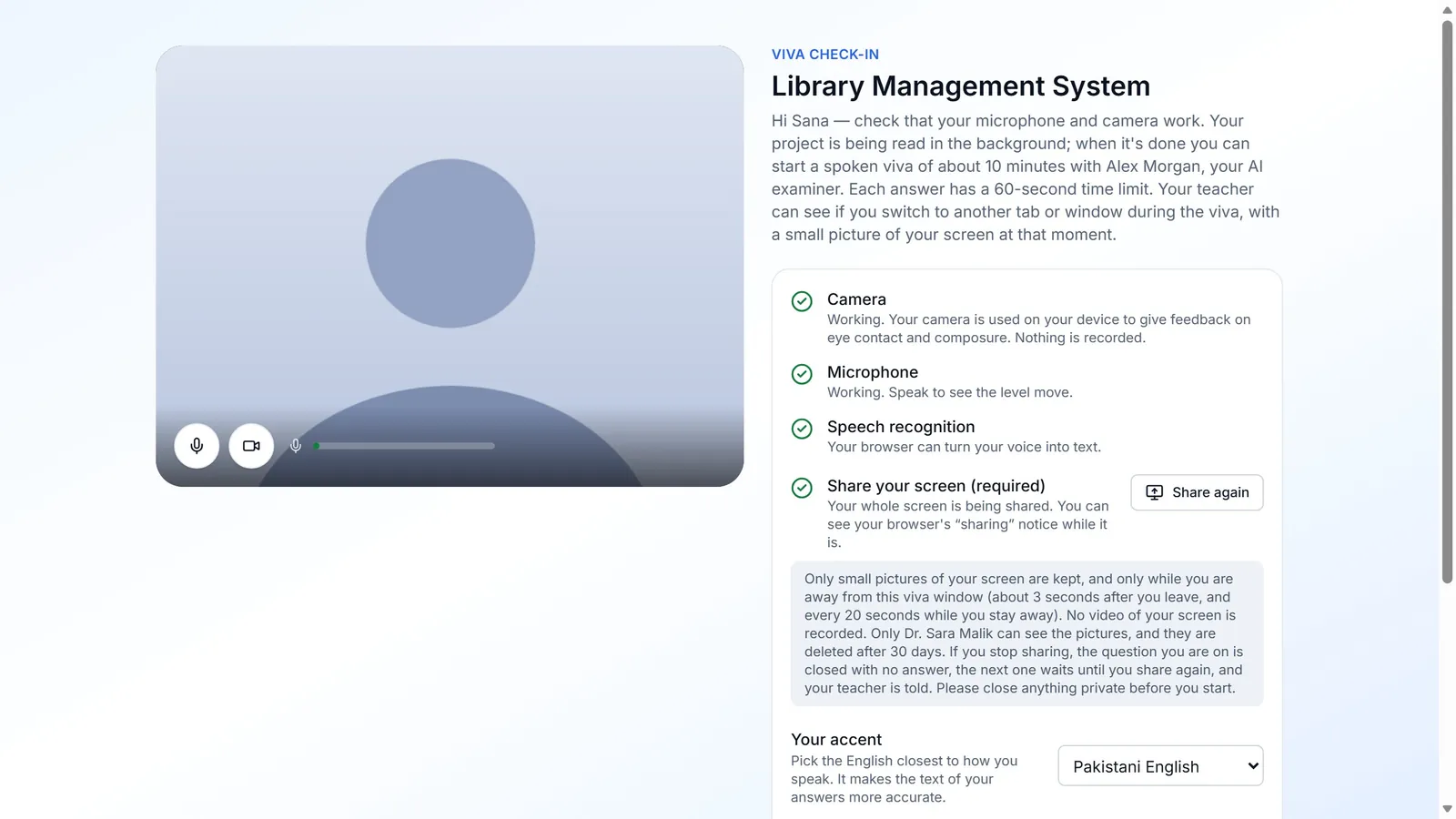
Share the whole screen
When you require it, the student shares their entire screen. The Start viva button stays off until they do.
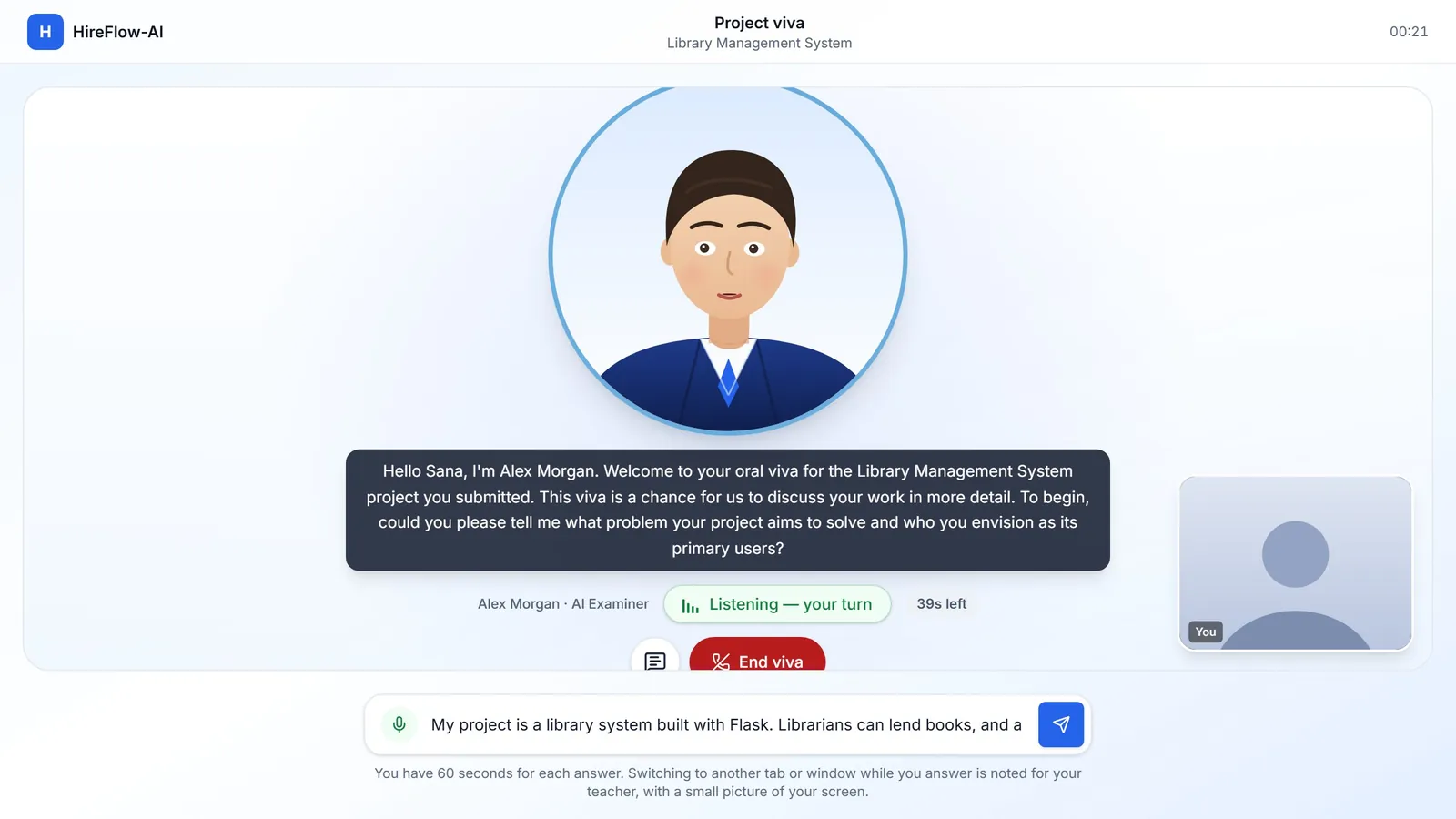
Talk to the AI examiner
Alex Morgan asks questions about their own project. The student speaks or types, with a countdown if you set a time limit.
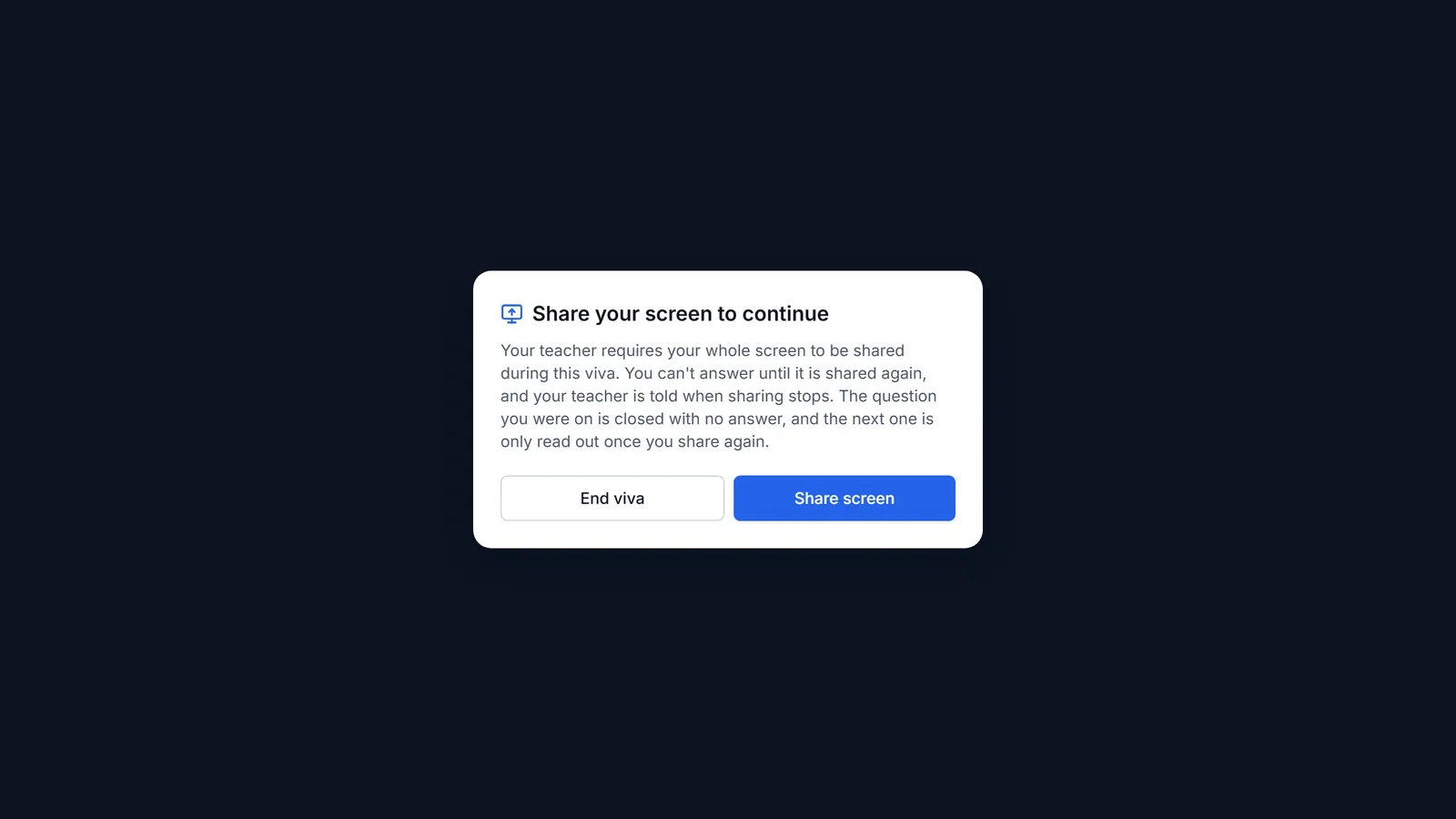
If sharing stops
The question being answered is closed, the next one waits until they share again, and the teacher is told.
Review the results
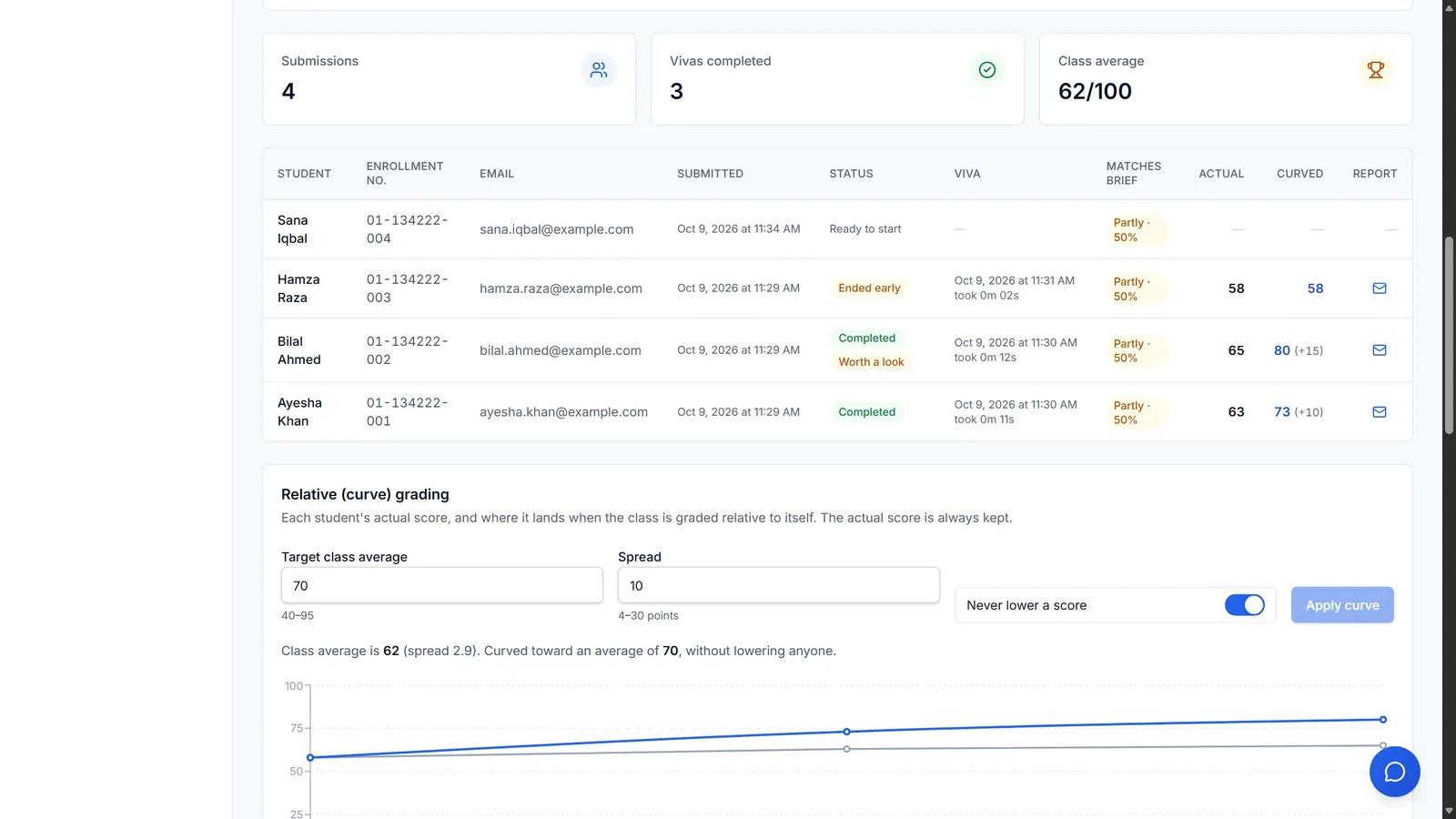
See the class results
Scores, status and a Worth a look badge for anything unusual. Email a report to one student or the whole class.
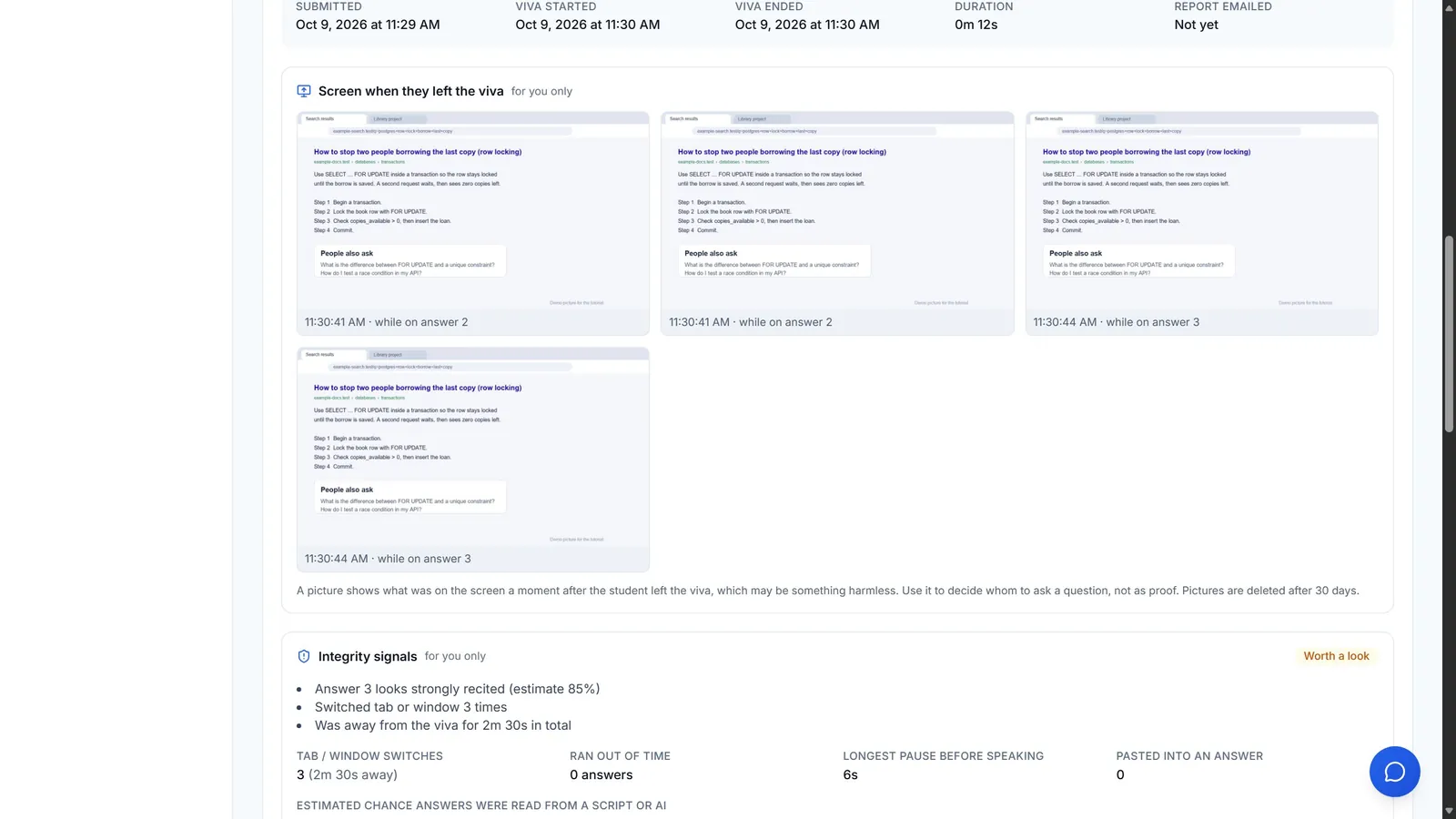
Look at the screen pictures
If a student stayed away from the viva, you see small pictures of their screen at that time. Only you can see them.
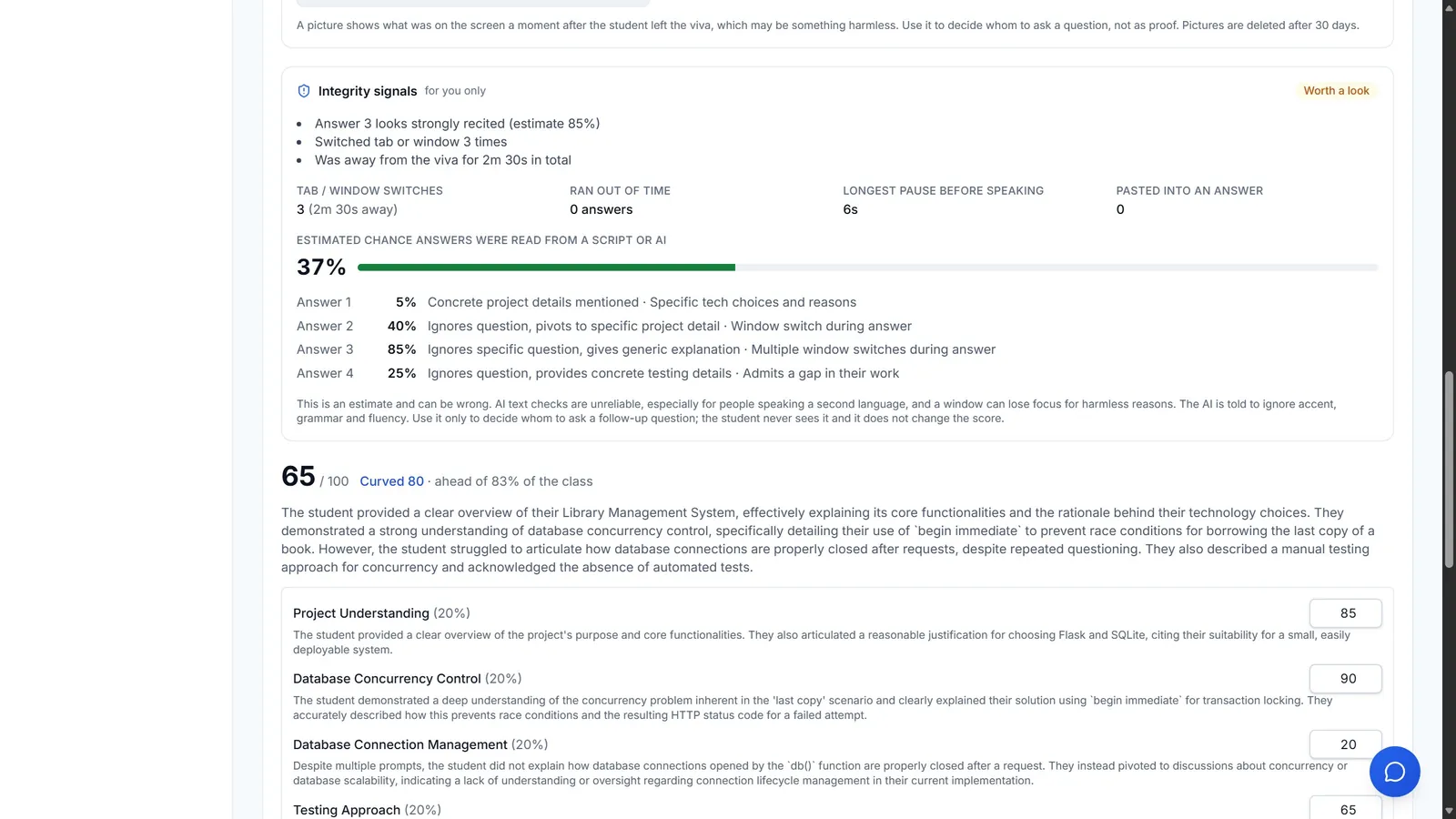
Check the signals
Tab switches, time away and an AI estimate. They are hints to ask a question, never proof, and they never change the score.
Good to know
- Students never need an account. They open the teacher's link, submit their project and take the viva.
- Requiring screen sharing is optional, and set for each assignment. It works on a laptop or desktop with Chrome or Edge, not on phones.
- Screen pictures, tab switches and the AI estimate are hints for a follow-up question. They never change a score, and students and their emailed reports never see them.
- Recordings and screen pictures are deleted after 30 days.